Logo of MyStyleGuide.io, a platform for sharing style guides and branding resources.
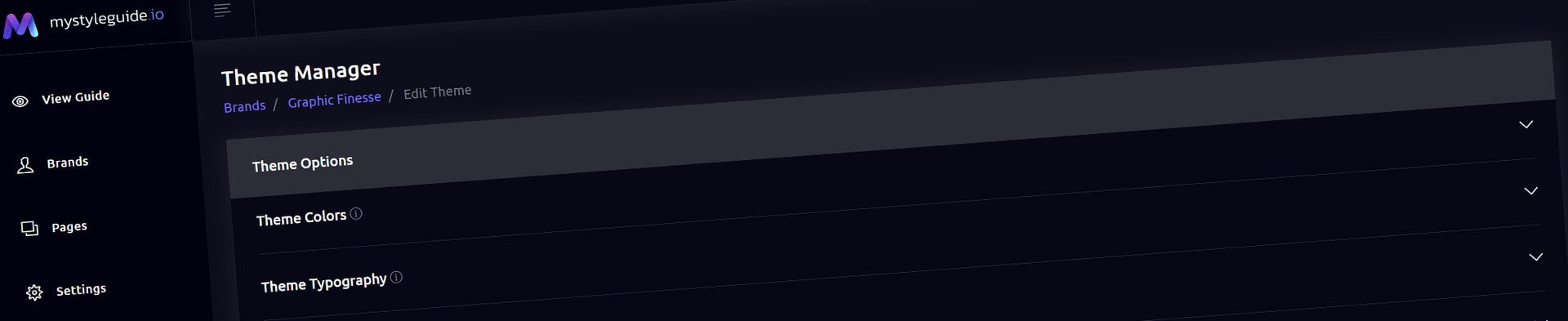
Screenshot of MyStyleGuide.io theme manager interface for brand organization.

Theme Manager

Customize the look and feel of your entire brand guide.

Theme Manager

The Theme Manager controls the visual identity of your entire brand guide. From colors and typography to logos and interface styling, every change you make here is applied consistently across your guide.

If you're defining how your brand looks, this is where you'll do it.

What You Can Customize

From the Theme Manager, you can:

  • Define your brand color palette
  • Configure typography
  • Upload custom fonts
  • Assign your favicon and navigation logo
  • Upload brand assets
  • Customize the admin experience

These settings work together to create a consistent visual experience across every page of your brand guide.


Brand Colors

Control the colors used throughout your guide.

Every color can be selected with the built-in color picker or entered directly using a HEX value.

Navigation

Customize the appearance of your navigation, including:

  • Background
  • Text
  • Button background
  • Button text
  • Button hover background
  • Button hover text

Page Colors

Set the primary colors used throughout your pages.

Available options include:

  • Light background
  • Dark background
  • Highlight color
  • Typography color

These colors establish the overall look and feel of your guide.


Typography Colors

Control the default colors used for text throughout your guide.

Configure separate colors for:

  • Headlines
  • Paragraphs

Using dedicated typography colors helps maintain readability while supporting your overall brand palette.


Typography

Customize the fonts used throughout your brand guide.

The Theme Manager supports both hosted fonts and self-hosted font files, giving you complete control over your brand's typography.

Custom Font Import CSS

Use Custom Font Import CSS to load fonts using CSS @import statements.

This is commonly used with services such as:

  • Google Fonts
  • Bunny Fonts
  • Other providers that supply @import CSS

For example:

@import url('https://fonts.googleapis.com/css2?family=Figtree:ital,wght@0,300..900;1,300..900&display=swap');

Multiple @import statements may be added when using more than one font provider.


Font Embed Code

Some font services provide a stylesheet link instead of an @import statement.

Paste the supplied HTML into the Font Embed Code field.

Examples include:

  • Adobe Fonts
  • Hosted font stylesheets
  • Self-hosted font stylesheets

Example:

<link rel="preconnect" href="https://fonts.googleapis.com">
<link rel="preconnect" href="https://fonts.gstatic.com" crossorigin>
<link href="https://fonts.googleapis.com/css2?family=Figtree:ital,wght@0,300..900;1,300..900&display=swap" rel="stylesheet">

Once loaded, the font families become available throughout your brand guide.


Theme Font Files

The Theme Font Files section allows you to upload your own licensed font files directly to your brand.

Supported file types include:

  • WOFF2
  • WOFF
  • TTF
  • OTF
  • EOT
  • SVG
  • CSS stylesheets

Uploaded files are stored in your brand's dedicated fonts directory.

When creating your stylesheet, reference each font using its direct path.

For example:

@font-face {
    font-family: "Xombico";
    src:
        url("https://example.com/direct-font-url/Your-Font-Regular.woff2") format("woff2"),
        url("https://example.com/direct-font-url/Your-Font-Regular.woff") format("woff");
}

After uploading your font files and stylesheet, reference the stylesheet in the Font Embed Code field.

This makes the uploaded fonts available throughout your brand guide.


Managing Font Files

Uploaded fonts can be managed directly from the Theme Manager.

Delete a Font

Remove an individual font file or stylesheet when it is no longer needed.

You'll be asked to confirm before the file is permanently deleted.

Delete All Fonts

Remove every uploaded font file and stylesheet.

Because this action permanently deletes multiple files, you'll be asked to confirm before continuing.


Font Families

Choose the default font family used throughout your guide.

Configure separate fonts for:

  • Headlines
  • Paragraphs
  • Special text

Any fonts loaded through Custom Font Import CSS or Font Embed Code become available for selection.


Font Sizes

Configure the default font size for:

  • Headlines
  • Paragraphs
  • Special text

These defaults establish the typography used throughout your brand guide while still allowing individual components to override them when needed.


Font Weights

Assign the default font weight for:

  • Headlines
  • Paragraphs
  • Special text

These settings help create a consistent typographic hierarchy across every page.


Brand Images

Assign the images used throughout your guide.

Favicon

Your favicon appears in browser tabs and bookmarks.

For best results, use a high-quality square image.

Navigation Logo

Choose the logo displayed in your guide's navigation.

Uploaded brand assets are available directly from the media library, making it easy to update your branding whenever needed.


Uploading Media

Use Media Upload to add new assets directly to your brand.

Supported media includes:

  • JPG / JPEG
  • PNG
  • WEBP
  • MP4

Uploaded files immediately become available throughout your brand guide, including Theme Manager, Components, and other media-enabled features.


Admin Appearance

Customize how MyStyleGuide.io looks while you're managing your brand.

Choose from:

  • Light
  • Dark
  • Use Brand Theme

These settings affect only your editing experience and do not change the public appearance of your brand guide.


Saving Your Theme

Click Save Theme Settings to apply your changes.

Your updated colors, typography, uploaded fonts, images, and interface settings are immediately applied across your entire brand guide, ensuring every page stays visually consistent.


Permissions

Owners and Managers can update theme settings, upload fonts, and manage font files for a brand.

Users with view-only access can browse published guides but cannot modify the brand's visual settings.


Summary

The Theme Manager is the foundation of your brand's visual identity.

From here you can define colors, configure typography, upload custom fonts, manage logos, and customize the overall appearance of your brand guide, ensuring every page presents a consistent and professional experience.

Modern, colorful MyStyleGuide.io logo with a sleek "M" design.

Sharing your brand just got easier

MyStyleGuide.io helps teams prevent off‑brand mistakes by giving everyone a single, reliable place to access your brand assets and guidelines. Built with thoughtful design and real‑world branding experience, it makes communicating your identity simple, consistent, and effortless
© 2023 - 2026 MyStyleGuide.io
  |  
Website Design by: 
Graphic Finesse