Logo of MyStyleGuide.io, a platform for sharing style guides and branding resources.
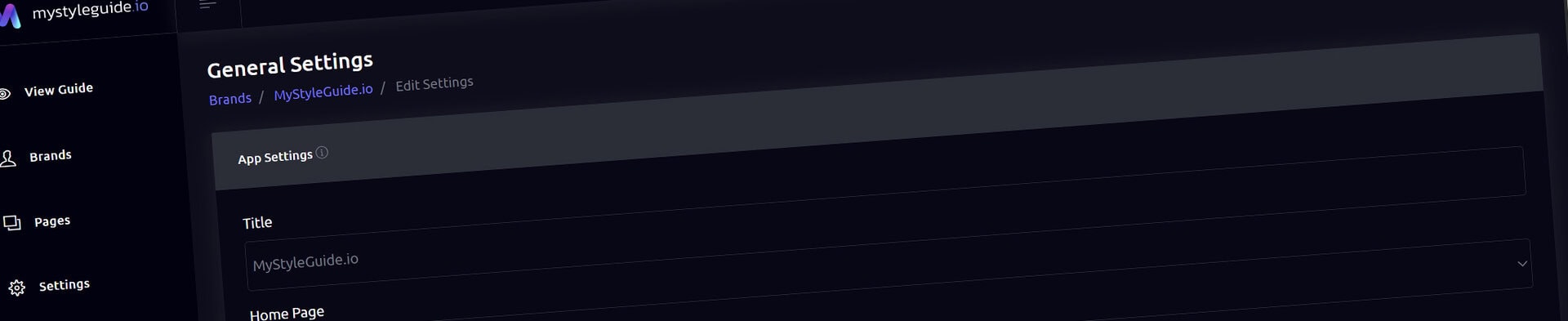
Screenshot of MyStyleGuide.io's digital brand guide interface.

General Settings

Control your brand’s global settings, access, structure, and security.

General Settings

The General Settings page is where you configure how your brand guide works. From your brand's identity and publication status to security, access, SEO, and team management, this page contains the settings that affect your entire guide.

Think of it as the control center for your brand.

What You Can Configure

From General Settings, you can:

  • Update your brand title
  • Manage the brand's publication status
  • Enable or disable sharing features
  • Select your homepage
  • Configure SEO settings
  • Require terms acceptance
  • Display important announcements
  • Protect your guide with a password
  • Create custom Access Keys
  • Manage Owners and Managers

All settings are organized into sections, making it easy to find what you need.


Brand Settings

These settings define the overall identity and availability of your brand guide.

Brand Title

The name of your brand guide.

This title appears throughout the application and can also be used in your SEO settings.

Publication Status

Every brand can be saved as either a Draft or Published.

Draft

Draft brands remain private while you're building or reviewing your guide.

Owners and Managers can continue editing and previewing the guide, but it remains hidden from visitors and shared links until it is published.

Draft mode is ideal for:

  • Building a new brand guide
  • Reviewing content internally
  • Preparing updates before they go live

Published

Published brands are live and available to users with permission to access the guide.

Once published, visitors can view published pages according to your sharing, password protection, and Access Key settings.

You can change the publication status at any time without affecting your content.


Feature Options

Enable or disable public features for your guide.

Available options include:

  • Download assets
  • Share the guide
  • Print pages

These options control which actions are available to visitors viewing your published guide.


Site Structure & SEO

These settings control how visitors and search engines experience your guide.

Home Page

Choose which published page visitors see first when they open your brand guide.

SEO Title Suffix

Automatically appends additional text to page titles.

For example:

Typography | Acme Brand Guide

This helps create consistent page titles across your guide.

SEO Description

Provide a short description of your brand guide.

This description may be used by search engines and when your guide is shared on social media.


Terms Acceptance

Require visitors to accept your terms before viewing the guide.

Available options include:

  • Require Terms Acceptance
  • Display an agreement checkbox
  • Customize the terms content

This feature is useful for confidential brand guides, licensing agreements, or NDA-protected materials.


Important Callout

Display a banner at the top of your brand guide.

Configure:

  • Enable or disable the callout
  • Message text
  • Optional link
  • Open in a new tab
  • Font color
  • Background color

Callouts are ideal for announcements, temporary notices, or important updates.


Security

Master Password

Protect your entire brand guide with a single password.

When enabled, visitors must enter the password before accessing any published content.

Access Keys can still provide customized access while the Master Password remains active.

Access Keys

Access Keys allow you to create secure, shareable links with customized permissions.

Each Access Key includes:

  • A unique key
  • A descriptive label
  • Allowed pages
  • Navigation visibility
  • Interface permissions

You can control whether a visitor can:

  • Share the guide
  • Download assets
  • Print pages

Access Keys make it easy to create personalized experiences for clients, partners, reviewers, or internal teams without creating separate brand guides.


Team Management

Collaborate with other users by granting access to your brand.

Owner

Owners have complete control and can:

  • Manage all settings
  • Publish and unpublish the brand
  • Invite or remove Managers
  • Create Access Keys
  • Delete the brand

Manager

Managers can:

  • Edit pages
  • Edit components
  • Manage themes
  • Upload assets
  • Update settings
  • Publish and unpublish the brand

Managers cannot:

  • Invite or remove other users
  • Delete the brand

Managers may remove themselves from a brand at any time.

Inviting Users

Enter the email address of an existing MyStyleGuide.io user to grant them Manager access to your brand.


Saving Your Changes

Click Save Settings to apply your changes.

General Settings are saved together, including the brand's publication status, while team management actions—such as inviting or removing Managers—are applied immediately using their own controls.

Changing a brand from Draft to Published makes the guide available according to your sharing, password, and Access Key settings.


Summary

The General Settings page controls the overall behavior of your brand guide.

From here you can configure your brand's identity, manage its publication status, organize your site's structure, optimize SEO, create secure sharing experiences with Access Keys, configure security, and collaborate with your team—all from a single location.

Modern, colorful MyStyleGuide.io logo with a sleek "M" design.

Sharing your brand just got easier

MyStyleGuide.io helps teams prevent off‑brand mistakes by giving everyone a single, reliable place to access your brand assets and guidelines. Built with thoughtful design and real‑world branding experience, it makes communicating your identity simple, consistent, and effortless
© 2023 - 2026 MyStyleGuide.io
  |  
Website Design by: 
Graphic Finesse