Logo of MyStyleGuide.io, a platform for sharing style guides and branding resources.
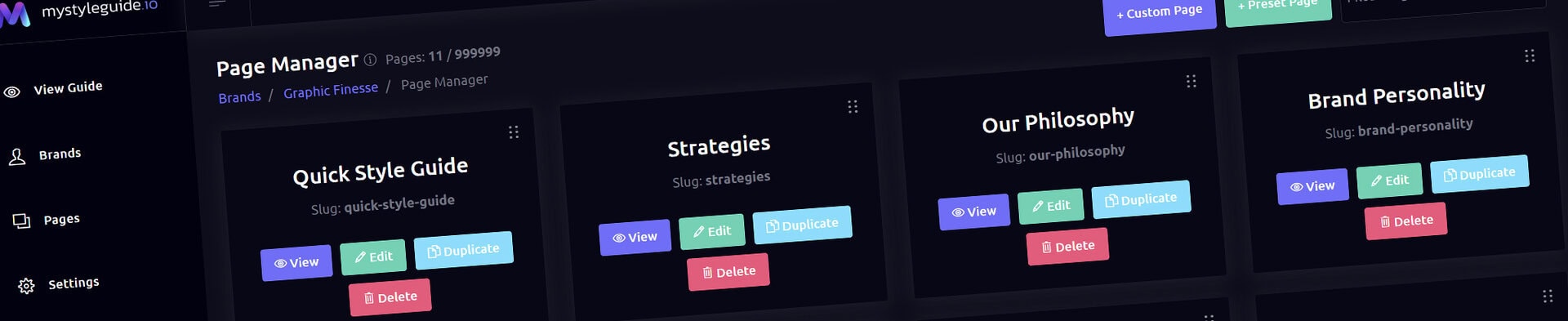
Screenshot of MyStyleGuide.io's digital brand management platform.

Page Manager

Create, organize, and manage all pages in your brand guide.

Page Manager

The Page Manager is where you create, organize, and manage every page in your brand guide. From your Brand Overview to Typography, Colors, Logos, and custom content, every page begins here.

If the Page Editor is where you build a page, the Page Manager is where you organize your entire guide.

What You Can Do

From the Page Manager, you can:

  • Create new pages
  • Start from a preset template
  • Edit existing pages
  • Duplicate pages
  • Delete pages
  • Reorder pages with drag-and-drop
  • Search for pages
  • Preview pages
  • Monitor each page's publication status

Everything you need to organize your guide is available in one place.


Understanding Page Cards

Each page is displayed as a card with important information and quick actions.

Page Information

Every card displays:

  • Page title
  • URL slug
  • Publication status (Draft or Published)
  • Page preview image

The publication status lets you quickly identify which pages are still being developed and which pages are live in your brand guide.

Quick Actions

Each page includes buttons to:

  • View the page
  • Edit the page
  • Duplicate the page
  • Delete the page

A drag handle also allows you to reorder pages within your guide.


Creating a New Page

There are two ways to create a page.

Custom Page

Choose + Custom Page to start with a blank page.

Enter a page title, such as:

  • Brand Overview
  • Typography
  • Logo Usage
  • Photography Style

MyStyleGuide.io automatically creates the page with:

  • Your page title
  • A clean URL slug
  • A blank canvas ready for editing

New pages are created as Drafts, allowing you to build your content before making it available to viewers.

Once created, open the page in the Page Editor to begin adding content.

Preset Page

Choose + Preset Page to start with a professionally designed layout.

Preset pages may include ready-made sections for:

  • Hero banners
  • Logo galleries
  • Typography
  • Color palettes
  • Content layouts
  • Other common brand guide pages

You can rename the page before creating it, and every preset can be customized after it's added to your guide.

Preset pages are also created as drafts until you're ready to publish them.


Editing a Page

Click Edit on any page card to open the Page Editor.

From there, you can:

  • Add components
  • Rearrange content
  • Edit text and images
  • Build multi-column layouts
  • Configure the page's settings
  • Publish or return the page to draft
  • Preview your changes as you work

For more information, see the Page Editor documentation.


Viewing a Page

Click View to open the page.

If the page has been published, you'll see exactly what your clients, teammates, or visitors will experience.

If the page is still a draft, only users with permission to edit the brand guide can view it.


Duplicating a Page

Need another page with a similar layout?

Click Duplicate to create a copy of any existing page.

Duplicating pages is useful when:

  • Creating page variations
  • Reusing layouts
  • Building similar content without starting over

Duplicated pages are created as Drafts, allowing you to customize them before publishing.


Deleting a Page

Click Delete on a page card to permanently remove it.

Before the page is deleted, you'll be asked to confirm your decision.

Deleting a page removes it from your guide and cannot be undone.


Reordering Pages

Pages can be reordered using drag-and-drop.

Simply:

  1. Grab the drag handle on a page card.
  2. Move the page to its new position.
  3. Click Save Order to apply your changes.

The page order determines:

  • Navigation menus
  • Page sequence
  • The order visitors browse your guide

Draft pages remain hidden from public navigation until they are published.


Finding a Page

Use the Filter Pages search box to quickly locate a page.

Start typing any portion of the page title and the list updates instantly.

This is especially helpful when working with larger brand guides.


Permissions

Owners and Managers can:

  • Create pages
  • Edit pages
  • Duplicate pages
  • Delete pages
  • Reorder pages
  • Publish and unpublish pages

Users with view-only access can browse published pages but cannot create, edit, publish, reorder, or delete content.


Summary

The Page Manager gives you complete control over the organization of your brand guide.

From here you can create pages, organize navigation, monitor each page's publication status, duplicate layouts, manage existing content, and quickly jump into the Page Editor whenever you need to make changes.

Modern, colorful MyStyleGuide.io logo with a sleek "M" design.

Sharing your brand just got easier

MyStyleGuide.io helps teams prevent off‑brand mistakes by giving everyone a single, reliable place to access your brand assets and guidelines. Built with thoughtful design and real‑world branding experience, it makes communicating your identity simple, consistent, and effortless
© 2023 - 2026 MyStyleGuide.io
  |  
Website Design by: 
Graphic Finesse