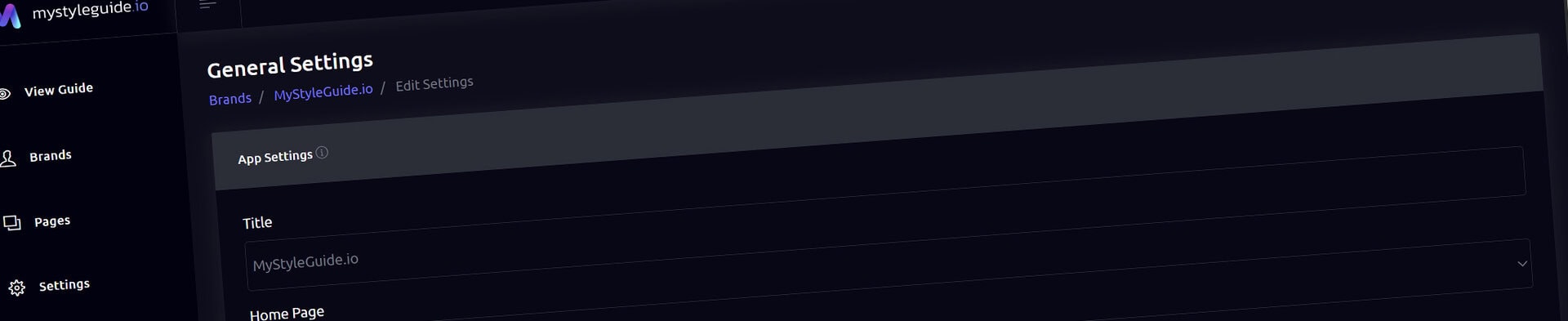
The General Settings page is where you configure the core behavior of your brand guide — everything from the site title and home page to access keys, terms acceptance, callouts, and team permissions. These settings affect how your brand guide looks, behaves, and is accessed by visitors.
This is the control center for brand‑level configuration.
From this page, you can manage:
Everything is grouped into clear sections for easy navigation.
The General Settings page is divided into the following sections:
🏷 App Settings
These settings control the overall identity and behavior of your brand guide.
Title
The name of your brand guide. Appears in the admin and can be used in SEO.
Admin Theme
Choose how the admin dashboard looks:
Feature Toggles
Enable or disable:
These settings affect the public‑facing UI.
These settings control how your brand guide appears to visitors and search engines.
Home Page
Choose which page loads first when someone visits your brand guide.
SEO Title Suffix
Adds a suffix to your page titles (e.g., “ Acme Brand Guide”).
SEO Description
A short description used by search engines and social previews.
📄 Terms Acceptance
If you need visitors to agree to terms before viewing your brand guide, you can enable this section.
Options include:
This is useful for legal disclaimers, licensing restrictions, or NDA‑protected content.
Add a prominent banner at the top of your brand guide.
You can configure:
This is ideal for announcements, updates, or important notices.
The master password locks the entire brand guide.
How it works:
- _ . ~ are allowedThis is perfect for private or pre‑launch brand guides.
Access keys let you create restricted access links with custom permissions.
Each access key can have:
Key
A short, URL‑safe code (e.g., clientA, review, press).
Label
A friendly name for your reference.
Page Permissions
Choose which pages the key can access.
Menu Visibility
Hide specific pages from the navigation for this key.
UI Permissions
Enable or disable:
This allows you to create tailored experiences for clients, partners, press, or internal teams.
You can add as many access keys as you need.
This section controls who can manage the brand guide.
Owners
Editors
Invite User
Enter an email to invite a WordPress user as an editor.
Remove Editor
Owners can remove editors at any time.
Leave Brand
Editors can remove themselves from the brand.
This makes collaboration simple and secure.
A Save Settings button is always visible in the bottom‑right corner.
Click it to apply all changes across:
Team access changes are saved separately using their own buttons.
The General Settings page helps you:
It’s the central hub for customizing how your brand guide works.