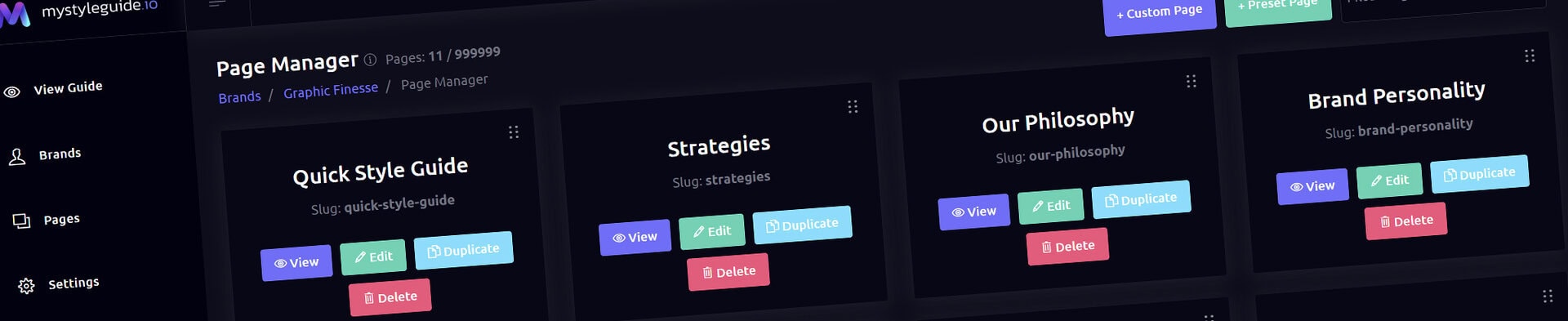
The Page Manager is the central hub where you build the structure of your brand guide. Every page — from your brand overview to typography, colors, logo usage, and more — is created and organized here.
If the Page Editor is where you design each page, the Page Manager is where you control the overall architecture of your guide.
From this screen, you can:
It’s a clean, visual way to manage the entire layout of your brand guide.
When you open the Page Manager, you’ll see:
Page Cards
Each page appears as a card showing:
Search Bar
Filter pages instantly by typing part of the page title.
Create Page Buttons
Two options:
Save Order Button
Appears below the page list.
Click it to save your drag‑and‑drop ordering.
Click + Custom Page to open the modal.
Enter a page name — for example:
A new blank page is created with:
You can then open it in the Page Editor to start building.
Click + Preset Page to choose from pre‑designed templates.
Preset pages may include:
You can rename the page before creating it.
Once created, you can fully customize it in the Page Editor.
Click Edit on any page card to open the Page Editor.
From there, you can:
Click View to open the public version of the page.
This is exactly what visitors will see.
Click Duplicate to create a copy of any page.
This is perfect for:
The duplicate appears immediately in your page list.
🗑 Deleting a Page
Click Delete on a page card.
You’ll be asked to confirm:
“Are you sure you want to delete this page? This action cannot be undone.”
Once deleted:
The Page Manager supports full drag‑and‑drop ordering.
How it works:
This order controls:
Use the Filter Pages search bar to quickly find a page.
As you type, the list updates instantly.
This is especially helpful for large brand guides.
Only owners and editors can access the Page Manager.
View‑only users cannot create, edit, or delete pages.
The Page Manager helps you:
It’s the foundation of your brand guide’s layout and navigation.